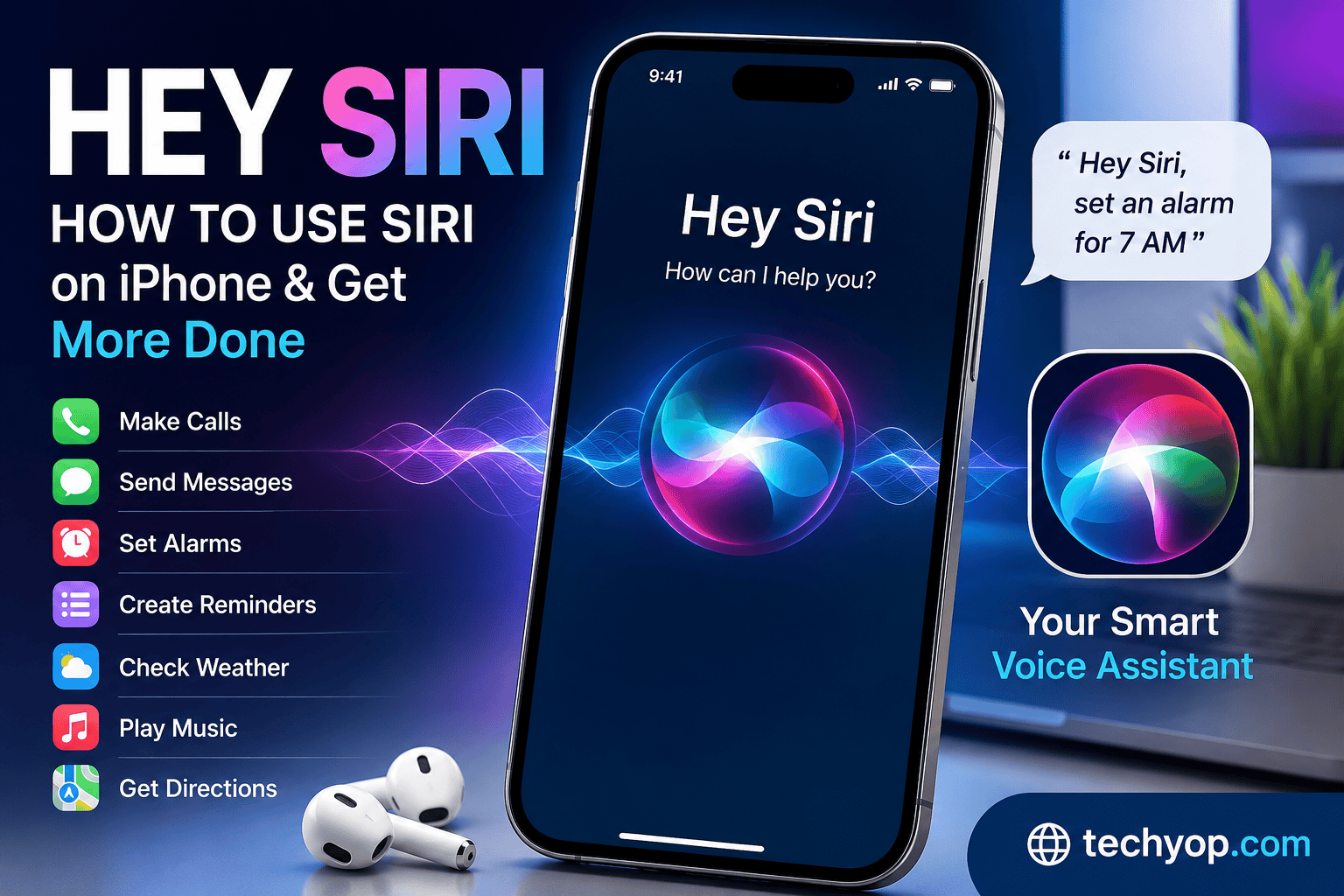
Hey Siri: How to Use Siri on iPhone and Get More Done
Siri is Apple’s built-in voice assistant that helps iPhone, iPad, Apple Watch, Mac, and other Apple devices perform everyday tasks with simple voice commands. Instead of opening an app or typing something manually, you can ask Siri to call someone, send a message, set an alarm, check the weather, play music, or answer a question.
For many users, Siri is useful because it can save time and make hands-free tasks easier. Whether you are new to the iPhone or have been using Apple devices for years, learning how to use “Hey Siri” can make your daily routine more convenient.
What Is Hey Siri?
“Hey Siri” is a voice activation feature that allows you to access Siri without manually pressing a button. Once the feature is enabled, you can say “Hey Siri” followed by a command.
For example, you can say:
- “Hey Siri, set an alarm for 7 AM.”
- “Hey Siri, call Mom.”
- “Hey Siri, what’s the weather today?”
- “Hey Siri, remind me to study at 6 PM.”
- “Hey Siri, play my favorite music.”
Depending on your Apple device, operating system, settings, and region, some Siri features may work differently.
How to Turn On Hey Siri
If “Hey Siri” is not responding on your iPhone, you may need to enable the feature in Settings.
Open Settings on your iPhone and look for Siri or Apple Intelligence & Siri, depending on your iOS version and device.
Then look for the option related to listening for “Hey Siri” or the corresponding Siri activation setting. Follow the instructions displayed on your screen to set up voice recognition if required.
Apple may ask you to repeat a few phrases so the device can recognize your voice more accurately.
Once setup is complete, you can try saying “Hey Siri” and then give your command.
How to Use Siri Without Saying Hey Siri
You do not always need to use your voice activation phrase. You can also activate Siri manually.
On many iPhones with Face ID, pressing and holding the Side button activates Siri. On some older iPhone models, you may need to press and hold the Home button.
After Siri appears, simply speak your request.
This method can be useful when you are in a noisy environment or when you do not want to say “Hey Siri” out loud.
What Can Siri Do?
Siri can perform many everyday tasks. Its available capabilities depend on your Apple device, software version, language, region, and settings.
1. Make Phone Calls
You can ask Siri to call a saved contact.
For example:
“Hey Siri, call Ahmed.”
If you have multiple contacts with the same or similar names, Siri may ask you to clarify which person you mean.
2. Send Messages
Siri can help you send messages without opening the Messages app.
You can say:
“Hey Siri, send a message to Ali saying I will call you later.”
Siri may read the message back to you and ask for confirmation before sending it, depending on your settings.
3. Set Alarms and Timers
Siri is particularly useful for alarms and timers.
Try:
“Hey Siri, set an alarm for 6:30 AM.”
You can also say:
“Hey Siri, set a timer for 20 minutes.”
This can be helpful when cooking, studying, exercising, or taking a short break.
4. Create Reminders
You can use Siri to remember tasks and important activities.
For example:
“Hey Siri, remind me to submit my assignment at 8 PM.”
The reminder can then appear in the Reminders app according to your device settings.
5. Check the Weather
Instead of opening a weather application, you can ask Siri about the weather.
For example:
“Hey Siri, what’s the weather today?”
You can also ask about the forecast for a particular day or location.
6. Play Music
Siri can control music and other supported media services.
For example:
“Hey Siri, play some relaxing music.”
You can also request a particular song, artist, playlist, or album when supported by your music service and account.
7. Get Directions
Siri can work with Apple Maps to help you find routes and locations.
For example:
“Hey Siri, give me directions to the nearest restaurant.”
The exact result depends on your location permissions, Maps data, and available services.
Hey Siri for Students
Siri can also be useful for students. You can use it to set study reminders, create alarms, check definitions, perform simple calculations, or manage your schedule.
For example, you could say:
“Hey Siri, remind me to revise mathematics at 7 PM.”
You can also create timers for focused study sessions. Using Siri for small tasks can reduce the time spent switching between different apps.
However, students should use AI and voice assistants as supporting tools rather than relying on them blindly for academic information. For important facts, it is always better to verify information using reliable sources.
Hey Siri When Your iPhone Is Locked
Depending on your Siri settings, some requests may work while your iPhone is locked. Apple provides settings that control what Siri can access when the device is locked.
For privacy and security, sensitive actions may require your device to be unlocked or additional authentication.
You can review Siri-related settings under the Settings app and adjust them according to your needs.
Why Is Hey Siri Not Working?
If Siri does not respond, there are several possible reasons.
First, check whether Siri is enabled in Settings. Also make sure your iPhone has a suitable internet connection for requests that require online services.
You can also check whether your microphone is working correctly. Remove anything that may be blocking the microphone and test it with another recording or calling feature.
If the problem continues, restarting your iPhone and checking for available software updates may help.
Another possibility is that the exact Siri feature you are trying to use is unavailable because of your language, region, device, or current software version.
How to Make Siri More Useful
To get better results from Siri, try to give clear and specific commands.
Instead of saying:
“Set something.”
Say:
“Set a timer for 15 minutes.”
Similarly, instead of saying:
“Message Ali.”
You can say:
“Send Ali a message saying I will be home at 6 PM.”
Clear commands reduce confusion and make it easier for Siri to understand what you want.
Siri and Privacy
Voice assistants can process information needed to respond to requests. Apple provides privacy controls and information about how Siri data is handled.
Users should review their Siri, microphone, location, and other privacy settings and choose options that match their preferences.
It is also a good idea to avoid sharing highly sensitive information unnecessarily with any voice assistant or online service.
Frequently Asked Questions
Can I use Hey Siri on every iPhone?
Siri is available on many Apple devices, but the exact features and activation options depend on the device model, software version, language, and region.
Does Hey Siri require the internet?
Some Siri requests require an internet connection, while certain device functions may be handled locally depending on the device and software.
Can Siri send WhatsApp messages?
Siri may work with supported third-party apps and features, but availability depends on the app, permissions, device, and current software version.
Can I change Siri’s voice?
Apple provides different Siri voice and language options in supported regions. Available choices can vary by device and software version.
Is Siri free?
Siri is a built-in Apple feature and does not normally require a separate subscription simply to activate the assistant. Some services that you ask Siri to access may have their own requirements.
Final Thoughts
“Hey Siri” can make an iPhone easier to use by allowing you to perform common tasks through voice commands. From setting alarms and reminders to making calls, sending messages, checking information, and controlling supported media, Siri can save time during everyday activities.
If you have an iPhone, take a few minutes to explore the Siri settings and try simple commands. As you become familiar with the available features, you can use Siri more effectively for communication, organization, studying, and daily tasks.